 Expense Book
Bank statement import · Free on iPhone and Android
Turn a bank statement PDF into categorised expenses
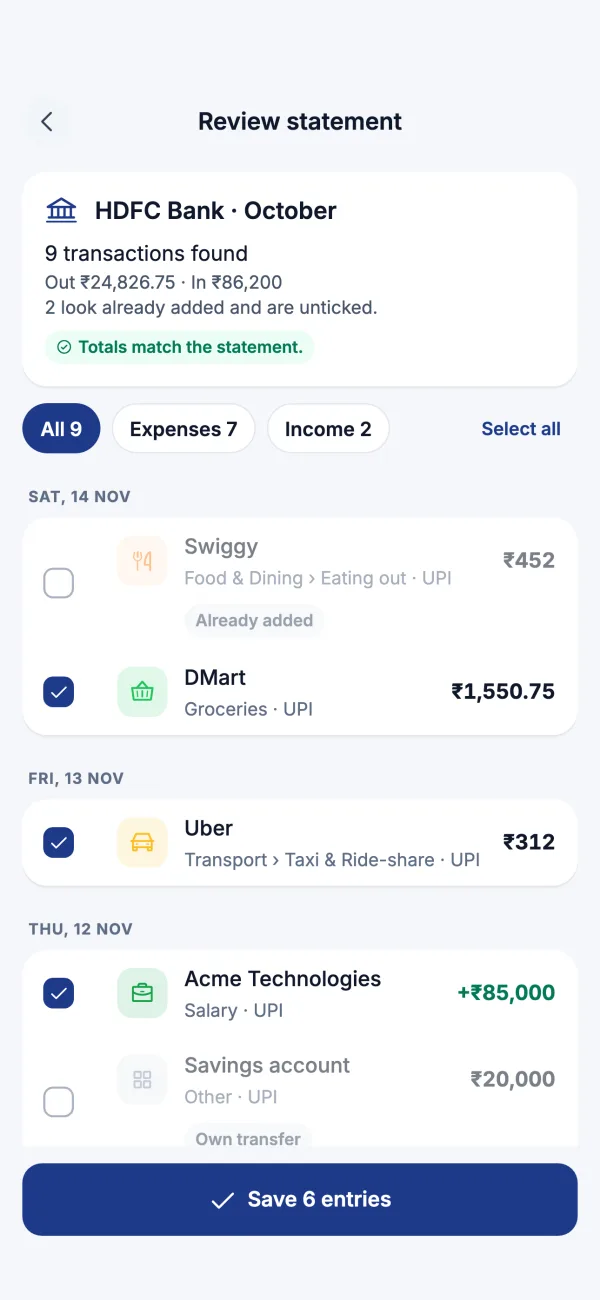
Pick the statement PDF your bank emails you. Expense Book opens it on your phone — the password never leaves your device — and the AI lists every transaction with a category. It checks the total against the statement, marks entries you already have, and skips transfers between your own accounts.
How it works
- 1
Pick the PDF
Tap Scan or upload and choose your bank or card statement.
- 2
Enter the password
If the PDF is locked, type its password. It is used only on your phone.
- 3
Review and save
See totals matched, duplicates unticked, and save the rest in one tap.
What you get
- Bank account and credit card statements, up to 20 pages
- Password-protected PDFs are opened on your phone
- Totals are checked against the statement
- “Already added” entries and own-account transfers start unticked
- Filter by expenses or income, select all or none
Questions
Which banks are supported?
Any bank or card that sends a PDF statement. Scanned (image) pages work too.
Is my statement password sent anywhere?
No. The PDF is unlocked on your phone and only the page text is sent to read the transactions.
How many credits does it use?
It depends on the length: 20 credits up to 5 pages, 30 up to 10 and 50 up to 20 pages. You see the price before you start.
What happens to my data?
Your entries stay on your phone unless you turn on cloud sync. Before you use AI the first time, the app shows what is sent and to which AI provider, and you can change this any time in Settings.